
What to Do When Windows Won’t Open an App
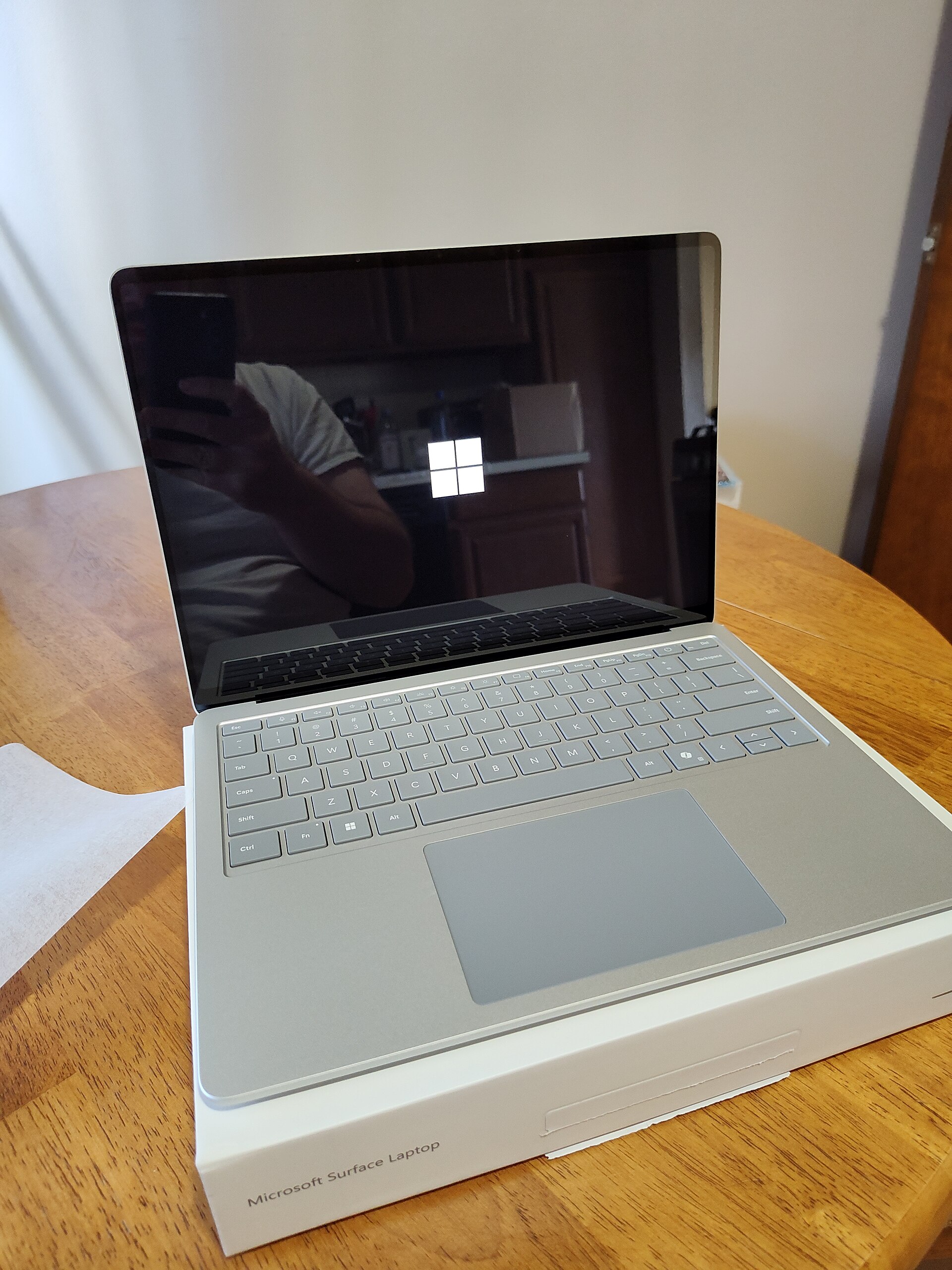
Try these safe, beginner-friendly fixes when a Windows app freezes, closes immediately, appears damaged, or is blocked by security.
Start with a restart and a second try
This guide assumes you are using an up-to-date version of Windows 11, including version 24H2. Some menu names are slightly different in Windows 10.
An app may fail to open because it is already stuck in the background or because Windows has a temporary problem. Save your work in other programs before continuing.
- Press Ctrl+Shift+Esc to open Task Manager.
- If the app appears under Processes, select it and choose End task.
End task
- Try opening the app again.
- If it still does not open, select Start > Power > Restart. After Windows restarts, try the app once more.
Check whether Windows blocked the download
Windows may mark a file downloaded from the internet as potentially unsafe. Only remove this block when you recognize the app, trust the website it came from, and expected to download it.
- Open File Explorer and find the downloaded installer or app file.
- Right-click the file and select Properties.
Properties
- On the General tab, look near the bottom for an Unblock checkbox. If it appears, select it, choose Apply, and then select OK.
Unblock
- Open the file again. If there is no Unblock option, Windows has not applied this particular restriction.
Handle a Microsoft Defender SmartScreen warning carefully
SmartScreen may display “Windows protected your PC” when an app is unfamiliar or does not have an established reputation. This does not automatically mean the app is malicious, but it is a reason to pause.
Confirm that the publisher and download source are legitimate. Avoid copies from download aggregators, pop-up ads, email attachments, and unofficial “cracked” software.
- If you are certain the app is trustworthy, select More info in the SmartScreen window.
More info
- Check the app and publisher details, and then select Run anyway if that option is available.
Run anyway
- If you are unsure, close the warning and download the app from the Microsoft Store or the developer’s official website instead. Do not turn off SmartScreen or antivirus protection just to install it.
Repair or reset the app
Windows can repair many Microsoft Store apps without deleting their data. Resetting is a stronger option and may erase the app’s settings, saved sessions, or sign-in information. Traditional desktop programs may not provide these controls.
- Open Start > Settings > Apps > Installed apps.
- Find the app, select the three-dot button beside it, and choose Advanced options. If Advanced options is not listed, move to the reinstall section below.
Advanced options
- Scroll down and select Repair. When it finishes, test the app.
Repair
- If repairing does not help, return to the same page and select Reset. Read the warning before confirming.
Reset
Install app and Windows updates
An older app may stop working after a Windows change, while an outdated Windows installation may be missing a fix the app needs. Store apps and regular desktop programs are updated in different places.
- For a Store app, open Microsoft Store, select Library, and choose Get updates or Check for updates.
- For other programs, open the app’s own updater if available, or download the latest compatible version from its official website.
- To update Windows, open Settings > Windows Update, select Check for updates, install available updates, and restart when requested.
Reinstall a damaged app
If required files are missing or corrupted, a clean reinstall is often the quickest solution. Make sure you know any license key, account password, or backup requirement first. Uninstalling may remove locally stored app data.
- Open Settings > Apps > Installed apps.
- Find the app, select its three-dot button, choose Uninstall, and follow the prompts.
Uninstall
- Restart the computer.
- Reinstall the app from Microsoft Store or the developer’s official website. Choose a version designed for Windows 11 and for your PC’s processor when the site offers multiple downloads.
Check Windows Security and permissions
Microsoft Defender may quarantine an app or one of its files. You can review what happened without disabling protection. Restore or allow an item only when you are confident it is safe.
Some older utilities need administrator access, but ordinary apps usually do not. Administrator mode gives a program more control over the computer, so use it only for software you trust.
- Open Start, search for Windows Security, and open it.
- Select Virus & threat protection > Protection history to see whether a related file was blocked. Open the item for details, but do not allow it unless you have verified the program and publisher.
- For a trusted app that specifically requires elevated access, right-click its shortcut and select Run as administrator, then approve the User Account Control prompt.
Run as administrator
- If the PC is managed by your workplace or school, contact its support team. Organization policies may intentionally prevent the app from running.
Confirm that the app is compatible
Very old software, unsupported drivers, 16-bit programs, and apps built for a different type of processor may not run on current Windows 11 PCs. Also check whether Windows is in S mode, which permits installation only from Microsoft Store.
Visit the developer’s support page and compare the app’s requirements with your Windows edition, processor type, and available storage. If the developer says the app does not support Windows 11, look for a current release or a supported alternative rather than downloading unofficial patches.
- Open Settings > System > About to view your Windows specifications and System type.
- Open Settings > System > Activation to check whether the computer is in S mode.
- If S mode is the issue, consider whether a Store version of the app is available. Switching out of S mode is permanent, so do not do it solely to test an untrusted program.
Bottom line
Begin by ending the stuck task and restarting, then check for security blocks, updates, repair options, and damaged files. If a trusted app still will not open after reinstalling, confirm that its developer supports your version of Windows 11.
Need a hand?
If you'd rather someone just take care of it, PcFixin' can help — residential or commercial.
About PcFixin'