
Make Windows Search and Widgets Use Your Default Browser
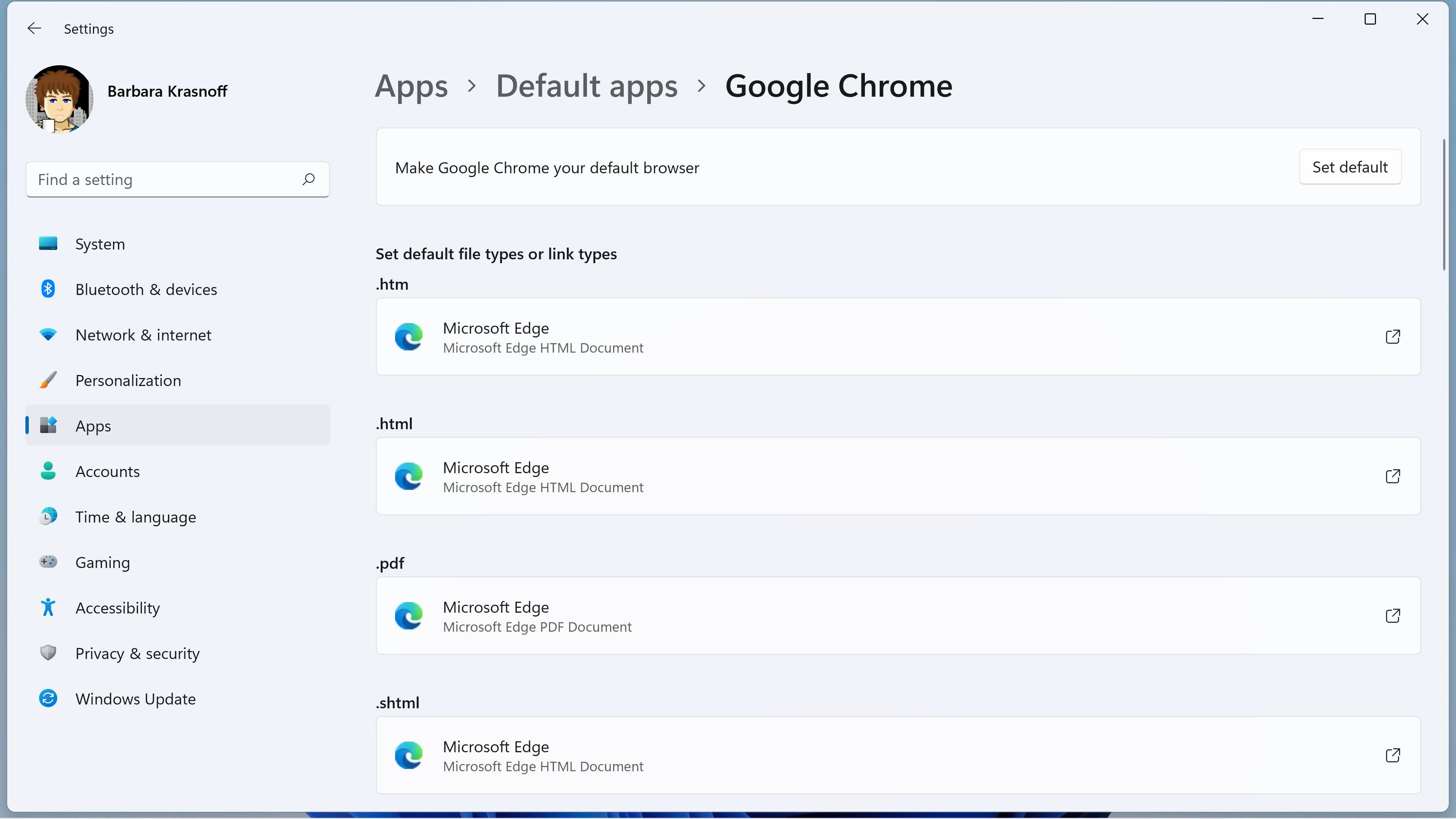
Set your preferred browser, then redirect Windows Search and Widgets links that would otherwise open in Microsoft Edge.
Why Windows ignores your browser choice
You set Chrome, Firefox, Brave, or another browser as the default. Normal links open correctly. Then you click a web result in Windows Search or a news story in Widgets, and Microsoft Edge appears anyway. You did not set anything incorrectly.
Some Windows features use a special Edge-specific link instead of a regular web address. Changing the default browser handles ordinary links, but it may not catch these special links. Windows does not currently provide one dependable setting that changes this behavior everywhere.
The walkthrough below assumes you are using Windows 11. Windows 10 users can also use the redirecting tool for Search, although the Settings screens may look different. Widgets, as described here, are mainly a Windows 11 feature.
Part 1: Confirm your default browser
First, make sure Windows knows which browser you prefer. This is important because the redirecting tool needs a destination.
A “default browser” is simply the app Windows normally chooses when you open a website link.
- Open the Start menu by selecting the Windows logo on the taskbar.
- Select Settings, which has a small gear-shaped icon.
- Select Apps in the left-hand list.
- Select Default apps.
- Type the name of your preferred browser into the application search box.
- Select your preferred browser from the search results.
- Select Set default near the top of the browser’s settings page.
Part 2: Redirect Search and Widgets links
The practical workaround is a free, open-source utility called MSEdgeRedirect. “Open source” means its program code is publicly available for inspection. It is not made or supported by Microsoft.
MSEdgeRedirect watches for Edge-only links and passes them to your default browser. Its setup screens can change between releases, so do not worry if a button is positioned differently from a picture. The reliable choice is the option called Active Mode.
As with any third-party utility, download it only from its official project page. Windows may display a warning because the program changes how certain links are handled. That warning can look alarming, but you can verify that you used the exact official address before continuing.
- Open your preferred web browser.
- Go to https://github.com/rcmaehl/MSEdgeRedirect/releases.
- Select the newest release listed at the top of the page.
- Expand the Assets section if the download files are hidden.
- Download the file named MSEdgeRedirect.exe.
- Open your Downloads folder in File Explorer.
- Double-click MSEdgeRedirect.exe.
- Select More info if a blue “Windows protected your PC” message appears.
- Select Run anyway only after confirming that the file came from the official rcmaehl GitHub page above.
- Accept the license terms if the setup window asks you to do so.
- Choose Active Mode if the program asks you to select an operating mode.
- Enable the option to start MSEdgeRedirect with Windows if that option appears.
- Select Install or Finish, depending on the button shown by your version.
- Restart the computer so the utility starts with a clean Windows session.
Test your slick new setup
Now comes the satisfying part. Search should still work normally, but web results should arrive in the browser you chose.
The website itself may still be Bing. Bing is the search service; Edge is the browser. This guide changes the browser used to display the page, not necessarily the search service behind the results.
- Select the Search box or magnifying-glass icon on the taskbar.
- Search for a website or general question.
- Select a web result.
- Confirm that the result opens in your default browser.
- Open the Widgets panel from its taskbar icon.
- Select a news story to test its browser destination.
If Edge still opens
Check the system tray, which is the small icon area beside the clock. MSEdgeRedirect must be running when Active Mode is used. You may need to select the upward-pointing arrow to see its icon.
Also remember that Outlook and Teams can have their own browser preference. Microsoft provides a separate setting for those apps. In new Outlook, the reliable path is Settings, General, then Files and links. Change “Open hyperlinks from Outlook in” to your Windows default browser. Microsoft says the corresponding Outlook and Teams choice is shared.
Windows updates occasionally change link handling. If the redirect stops working later, return to the project’s Releases page and install the newest version.
- Select the upward-pointing arrow beside the taskbar clock to check whether MSEdgeRedirect is running.
- Launch MSEdgeRedirect from the Start menu if its tray icon is missing.
- Install the latest MSEdgeRedirect release if an older version no longer redirects links.
Bottom line
Setting a default browser handles normal links, while MSEdgeRedirect catches the Edge-specific links used by Windows Search and Widgets. Once both are configured, those surprise Edge windows should give way to the browser you actually chose.
Sources
Steps grounded in the guidance above; wording and walkthrough are PcFixin' originals.
Need a hand?
If you'd rather someone just take care of it, PcFixin' can help — residential or commercial.
About PcFixin'