
Windows 11 System Restore
Has your version of Windows become unstable or corrupt, or maybe your desktop is not as it was a few days ago? Making use of a built-in Windows tool could do the trick to get you back on track. Most often Windows System Restore is used when a user encounters a virus or malware — but what if you didn't enable Windows System Restore, or even worse, disabled the System Restore feature?
Follow these steps to ensure that Windows System Restore is enabled, and afterwards I'll show you how to use it to roll your system back to a date when your computer was functioning normally — before a virus, malware, or any unusual change was present.
First, start by clicking the Search icon on your taskbar.
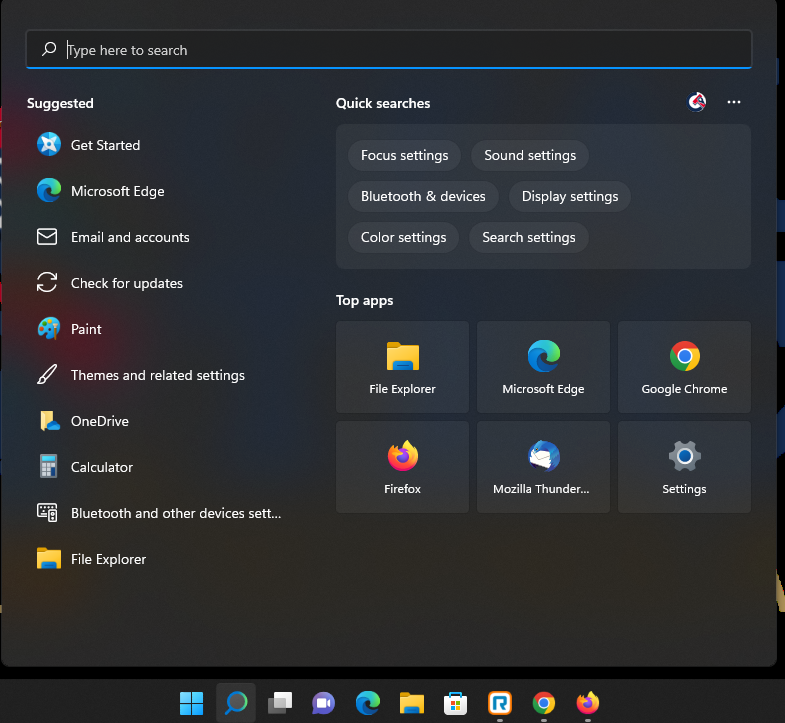
Once you click the Search icon you will see the text “Type here to search.” Type System Restore in the field provided.
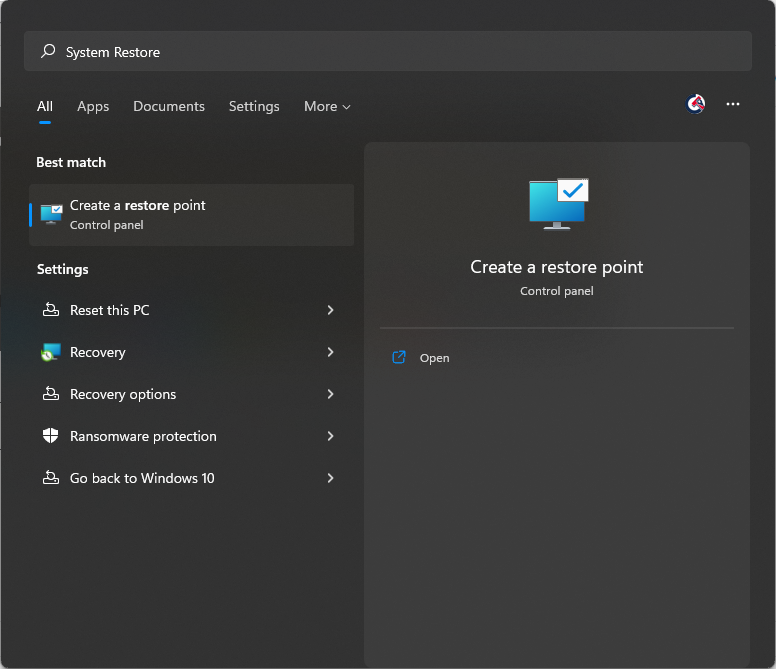
Click on “Create a restore point.” A “System Properties” dialog box will appear.
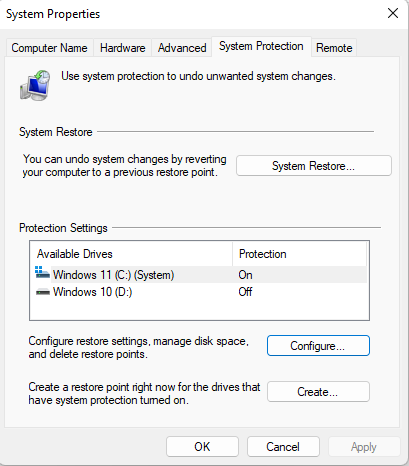
Under Protection Settings, confirm that On is listed below “Protection.” If it is not listed, click the Configure button.
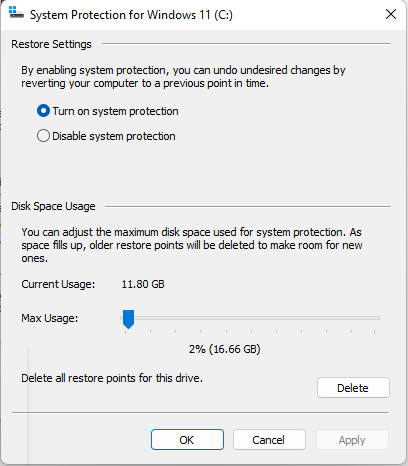
Tick the radio button “Turn on system protection,” then click Apply at the bottom right of the dialog, then OK to close the window.
If System Protection was disabled and you've just enabled it using this tutorial, chances are you will not have any restore points available yet. Restore points are created when software is installed, when Windows Updates are performed, or when you manually create one using the Create button in the System Properties dialog box.
Click the System Restore button located in the System Properties dialog box to view any restore points that have been created. A scan box will appear briefly, followed by the System Restore dialog box.
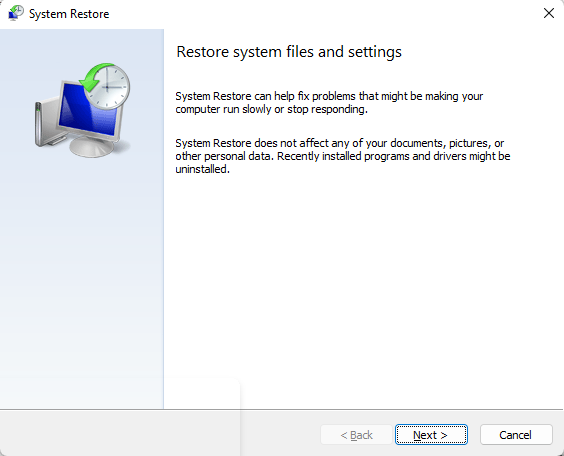
Click Next in the System Restore dialog box to view any restore points available to you.
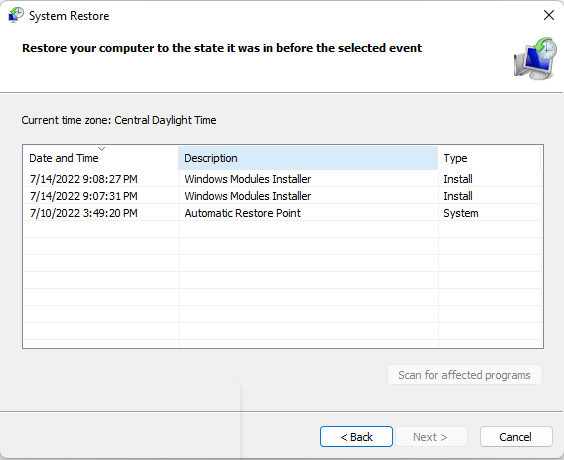
Choose one of the available restore points by clicking on it. It is a good idea to choose a restore point dated prior to the time your system encountered a virus, malware, or unusual change. The time a System Restore takes can vary depending on your computer's speed and the file changes required to roll the system back. Once your system has been restored to an earlier date, you'll be able to log in and use your computer without losing personal files — email, documents, or system settings.
If you found this tutorial useful, please share it with others who may be in need or have encountered erratic system behavior due to viruses, malware, or unusual changes causing poor computer performance.
Still stuck?
If System Restore didn't resolve it, PcFixin' can help — residential or commercial.
About PcFixin'