
MacBook Hot or Slow? Find the App Causing It
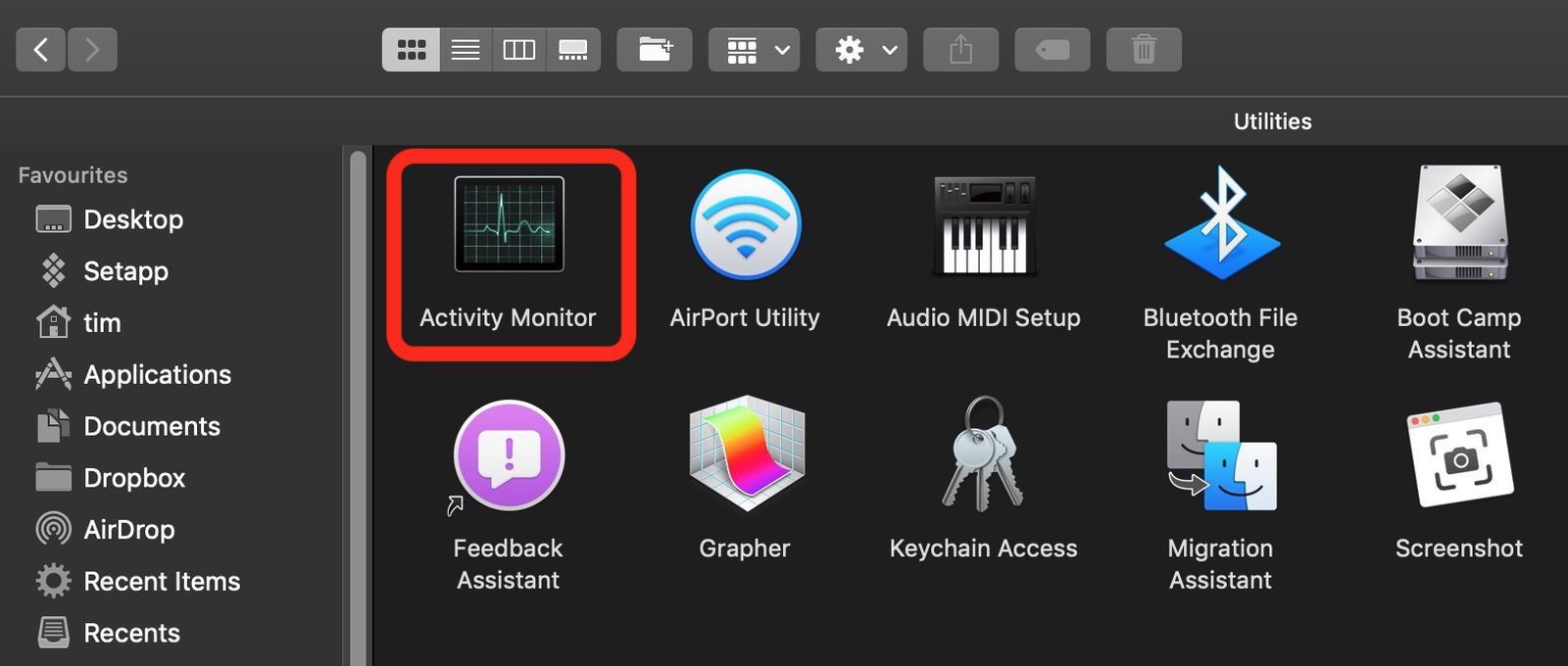
Use Activity Monitor and a few safe built-in checks to find runaway apps, lower the heat, and get your MacBook moving normally again.
First, give your MacBook room to cool
A warm MacBook is not automatically in danger. The case helps release heat, and the fans may become audible during demanding work. Video calls, games, photo editing, and dozens of browser tabs can all make it warmer.
Start paying attention when the Mac becomes unusually hot, the fans keep racing, or simple actions feel slow. You do not need to open the computer. First, help it breathe, and then use Activity Monitor to find out what is keeping it busy.
- Place the MacBook on a hard, flat surface such as a desk or table.
- Remove any snap-on case or keyboard cover while the MacBook cools.
- Close any browser tabs you no longer need.
- Quit any apps you are finished using.
Find the busy app with Activity Monitor
Activity Monitor is a utility included with macOS. It shows what every open app and background process is doing. A process is simply a task running on your Mac; some have unfamiliar names, so do not worry if the list looks intimidating.
These directions assume macOS Ventura or later. Activity Monitor works similarly on older versions, although a button may look slightly different.
- Press Command and Space bar together to open Spotlight, which is the Mac’s built-in search box.
- Type Activity Monitor into the Spotlight search box.
- Press Return to open Activity Monitor.
- Click CPU near the top of the Activity Monitor window.
- Click the % CPU column heading until the largest numbers appear at the top.
- Watch the list for about 30 seconds without opening anything else.
Decide what is safe to quit
CPU means central processing unit—the main part of the Mac doing the computational work. A high number can be normal while an app performs a real job. For example, a video editor exporting a movie may legitimately use a lot of CPU.
Look instead for an app you recognize that stays near the top even though you are not using it. A browser, cloud-sync tool, video-call app, or stalled application may be the culprit. Leave unfamiliar system processes alone. You only need to stop an app you recognize.
Save important work before quitting anything. If the app is frozen, unsaved changes may already be at risk.
- Click the name of the recognized app that remains unusually busy.
- Click the Stop button in the toolbar, usually shown as an octagon containing an X.
- Click Quit when Activity Monitor asks what you want to do.
- Choose Force Quit only if the app refuses to close normally.
- Wait one minute to see whether the Mac becomes cooler or more responsive.
If CPU looks normal but the Mac is still slow
An app can also consume too much memory, meaning the Mac’s short-term working space. Activity Monitor includes a Memory Pressure graph that summarizes the situation. Green is generally comfortable. Yellow or red suggests the Mac is struggling to provide enough memory.
Do not chase every large number. Browsers and creative apps often use plenty of memory legitimately. Concentrate on apps you recognize and no longer need.
- Click Memory near the top of Activity Monitor.
- Look at the Memory Pressure graph at the bottom of the window.
- Quit one unused app if the graph is yellow or red.
- Restart the Mac if performance does not improve after closing unused apps.
Prevent the same slowdown from returning
Some apps start automatically whenever you sign in. These are called login items. Too many can make startup slow and keep background tasks running all day.
The following path is for macOS Ventura or later. On older releases, login items are usually under System Preferences, then Users & Groups.
- Open the Apple menu in the upper-left corner of the screen.
- Choose System Settings.
- Click General in the sidebar.
- Click Login Items.
- Disable a background item only when you recognize it and do not need it running automatically.
- Return to General in System Settings.
- Click Software Update.
- Install any available macOS update when you have time to restart safely.
When heat may not be caused by an app
If the Mac stays extremely hot while Activity Monitor shows little activity, shut it down and let it cool. Persistent fan noise, unexpected shutdowns, or heat during light use may point to a cooling or hardware problem. Apple Diagnostics can check hardware, including cooling fans on MacBook models that have them, without requiring you to open the computer.
Also check free storage if slowness continues. In System Settings, open General and then Storage. A nearly full startup disk can make macOS feel sluggish even when no app is monopolizing the CPU.
- Arrange professional support if the Mac repeatedly overheats during light use or its fans appear not to work.
Bottom line
Activity Monitor lets you catch a runaway app without taking your MacBook apart. Give the computer airflow, quit only apps you recognize, and check login items and updates to keep the problem from coming back.
Sources
Steps grounded in the guidance above; wording and walkthrough are PcFixin' originals.
Need a hand?
If you'd rather someone just take care of it, PcFixin' can help — residential or commercial.
About PcFixin'