
How to Change the Default Browser on a Mac
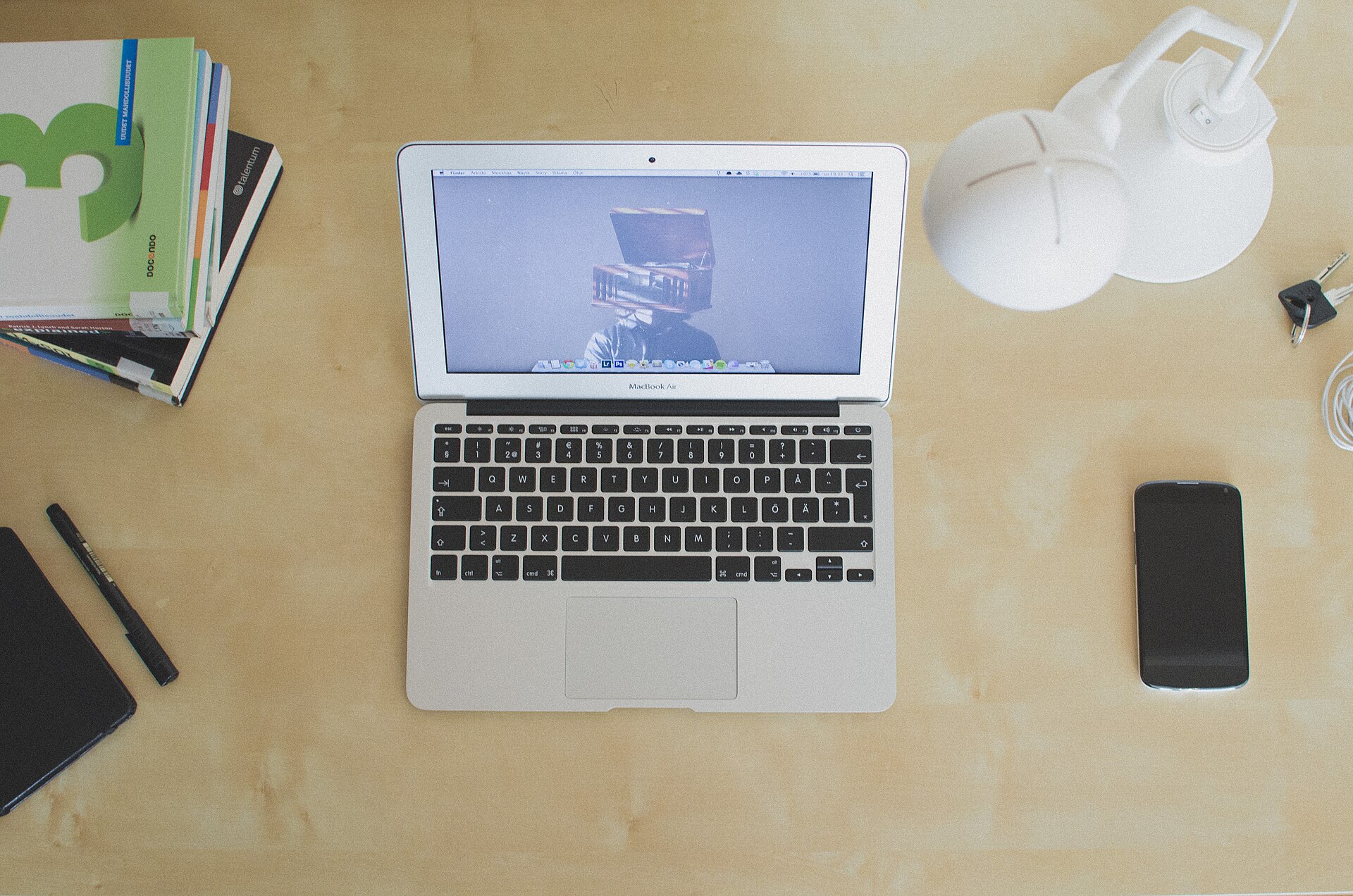
Choose Chrome, Firefox, or another browser so links open there automatically instead of Safari.
Before you change the default
Your Mac uses Safari as its default web browser when it is new. You can switch to Google Chrome, Mozilla Firefox, Microsoft Edge, Brave, or another installed browser without removing Safari.
This guide assumes you are using macOS Tahoe 26 or another recent version of macOS. Apple occasionally moves settings between releases, so you can use the search box in System Settings if the location on your Mac looks different.
Make sure the browser you want is installed and has been opened at least once. Opening it allows macOS to register the app as an available browser. You can download browsers from the developer’s official website or, when available, the App Store.
Change the default browser in System Settings
The most reliable way to choose a default browser is through macOS System Settings. This controls which browser opens when you click a normal web link in Mail, Messages, Notes, and most other apps.
- Click the Apple menu in the upper-left corner of the screen.
Apple menu
- Choose System Settings.
System Settings
- Use the search box at the top of the sidebar and enter “default web browser.” Select the matching result. On macOS Sequoia 15, Sonoma 14, and Ventura 13, you can also open Desktop & Dock and scroll down to Default web browser.
- Click the menu next to Default web browser.
- Choose Chrome, Firefox, Edge, Brave, or the browser you want to use.
- Close System Settings. Your choice is saved automatically.
You can also start from the browser
Many browsers display a “Make default” button when you open them. Chrome usually places this option in the Default browser area of its settings, while Firefox includes a similar button under General settings.
Clicking that button may make the change immediately or direct you to the appropriate macOS setting. Because browser menus can change after an update, using System Settings is usually the simpler option if you cannot find the button.
Check that the change worked
Open Mail, Messages, or Notes and click a web link. The page should open in your newly selected browser. The change affects links you open from now on; it does not move tabs or windows that are already open in Safari.
Some apps display web pages inside their own built-in window instead of opening a separate browser. Changing the default browser will not necessarily alter those in-app pages. Apple may also continue using Safari-based technology for certain system features, even when another browser is your default.
Choose which app opens HTML files
The default browser setting covers web links, but an HTML file saved on your Mac can have its own app association. If a .html or .htm file still opens in Safari, change its “Open with” setting in Finder.
The Change All button applies your choice to other files with the same filename extension. Because .html and .htm are treated as separate file types, you may need to repeat the process for each one.
- In Finder, select an HTML file.
- Choose File > Get Info, or press Command-I.
Command+I
- Expand the Open with section if it is closed.
Open with
- Select your preferred browser from the menu. If it is not shown, choose Other and select it from the Applications folder.
- Click Change All, then confirm that you want similar files to open with that browser.
Change All
If your browser is missing from the list
First, look in the Applications folder and confirm that the browser is installed there. Open the browser once, complete any initial setup screens, quit it, and check System Settings again.
If it still does not appear, update the browser or download a fresh copy from its official website. On a Mac managed by an employer or school, an administrator may restrict which apps can be used or changed.
A browser may occasionally ask to become the default after an update. Read the prompt carefully: accepting it can replace your current choice. You can always return to System Settings and switch back.
Switch back to Safari
Nothing is permanent. To make Safari the default again, return to the Default web browser setting and choose Safari. Your bookmarks, history, and saved passwords in other browsers are not deleted when you switch.
Bottom line
Choose your preferred browser under Default web browser in System Settings, then test it by clicking a link in another app. If saved HTML files still open elsewhere, update their Open with setting separately in Finder.
Need a hand?
If you'd rather someone just take care of it, PcFixin' can help — residential or commercial.
About PcFixin'