
Get More from Mac OS X on a Vintage Mac
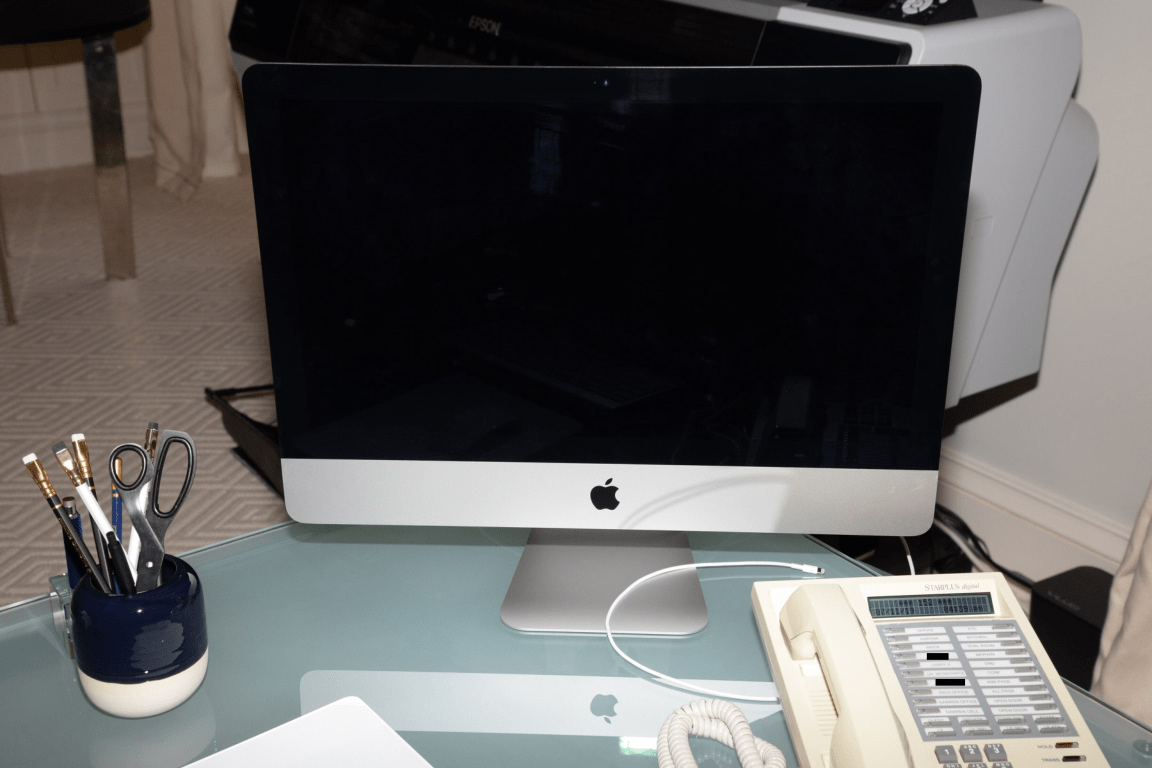
Speed up, organize, protect, and enjoy an older or emulated Mac with these practical Mac OS X tips.
Start by identifying your Mac and system
Older Mac software is highly version-dependent. Choose Apple menu > About This Mac to see your Mac OS X version, processor type, and installed memory. Click More Info for additional hardware details; on some releases, this opens System Profiler.
The processor matters when downloading applications. PowerPC Macs need PowerPC-compatible software. Intel Macs can run Intel applications and, from Mac OS X 10.4 through 10.6, may also run many PowerPC applications through Apple’s Rosetta translation technology. A Universal application contains code for both processor families. Mac OS X Lion and later do not include Rosetta.
- Write down the Mac OS X version shown in About This Mac.
- Note whether the processor is PowerPC, Intel Core Duo, or Intel Core 2 Duo and newer.
- Check application requirements before downloading old software; a matching Mac OS X version alone is not always enough.
Give Mac OS X some breathing room
A nearly full startup disk can make Mac OS X feel sluggish because the system needs free space for temporary files and virtual memory. Virtual memory is disk space used when physical memory, or RAM, is running low. Try to leave at least 10 to 20 percent of the startup disk free.
Move large installers, videos, and duplicate files to an external drive. Empty the Trash afterward, but inspect it first. Avoid aggressive cache-cleaning utilities: caches usually improve speed, and deleting the wrong system files can create new problems.
- Open a Finder window and select the startup disk, commonly named Macintosh HD.
- Choose File > Get Info to compare Capacity and Available space.
- Open Applications > Utilities > Activity Monitor to see which applications use the most processor time or memory. The layout differs slightly among Mac OS X releases.
- Restart occasionally. This clears temporary working data and can help a Mac that has been running for weeks.
Trim startup items and visual extras
Programs that open automatically consume memory before you begin working. In Mac OS X 10.4 through 10.6, open System Preferences > Accounts, select your account, and look under Login Items. Later releases may call the preference pane Users & Groups.
Select an item and click the minus button to remove it from the login list. This does not uninstall the application. Leave security tools, hardware helpers, and anything you do not recognize alone until you know what it does.
You can also make the desktop lighter. Open System Preferences > Dock and disable animation or magnification if those effects feel choppy. Dashboard widgets, introduced in Tiger, may also use memory, so keep only the widgets you actually need.
- Remove clearly unnecessary applications from Login Items.
- Reduce Dock effects if window movement is slow.
- Use a plain desktop picture and avoid leaving dozens of Finder windows open on a low-memory Mac.
Use the built-in organization tools
Finder can remember different views for different folders. Open a folder and choose View > Show View Options, or press Command-J. Depending on the Mac OS X version and selected view, you can adjust icon size, text size, sorting, and whether item information appears.
Spotlight is available in Mac OS X 10.4 Tiger and newer. Click the magnifying-glass icon in the menu bar or press Command-Space to search for applications and documents. On a newly installed system, results may be incomplete while Spotlight builds its index.
Exposé helps you find buried windows. Its keyboard shortcuts vary by Mac model and system settings, so check System Preferences > Exposé & Spaces, Dashboard & Exposé, or Mission Control. Spaces, Apple’s early virtual-desktop feature, arrived in Mac OS X 10.5 Leopard.
- Customize frequently used folders with Command-J.
Command+J
- Drag favorite folders to the Finder sidebar for quick access.
- Place commonly used applications in the Dock and drag unwanted Dock icons away; removing a Dock icon does not delete the application.
Back up in a version-appropriate way
Mac OS X 10.5 Leopard and newer include Time Machine. Connect an external drive and open System Preferences > Time Machine to choose it. If Mac OS X offers to erase or reformat the drive, confirm that it contains nothing you need first.
Tiger users can manually copy their Documents, Pictures, Music, and other personal folders to an external disk. A bootable clone is another option, but the required disk partition scheme differs between PowerPC and Intel Macs, so use cloning software that explicitly supports your Mac and OS version.
For an emulated Mac, copy the virtual hard-disk file while the emulator is fully shut down. Emulator snapshots are convenient rollback points, but they should not be your only backup because they may depend on the original disk image.
- Keep at least one backup separate from the vintage Mac.
- Test the backup by opening several copied files.
- Back up the virtual disk before installing experimental software or system updates in an emulator.
Treat internet access carefully
Classic Mac OS X releases no longer receive Apple security updates. Their browsers may also lack modern encryption and certificate support, causing websites to display incorrectly or refuse connections. A community browser can improve compatibility on some systems, but it does not make an unsupported operating system fully safe.
Use a newer device for banking, shopping, password changes, and sensitive email. If the vintage Mac is mainly for old games or applications, consider leaving it offline. In an emulator, use isolated or disabled networking unless internet access is genuinely needed.
Download old software from reputable archives, scan files on a supported computer when possible, and keep copies of known-good installers. Avoid applying random system tweaks simply because they promise dramatic speed gains.
Bottom line
A vintage Mac works best when you match software to its processor, keep plenty of disk space free, limit startup clutter, and maintain a reliable backup. Enjoy classic Mac OS X for the tasks it still handles well, but use a supported device for sensitive online activity.
Need a hand?
If you'd rather someone just take care of it, PcFixin' can help — residential or commercial.
About PcFixin'